Loading

Loading 24x7 Stream...

1931 Views
Shop Products
Shop
Tutorials

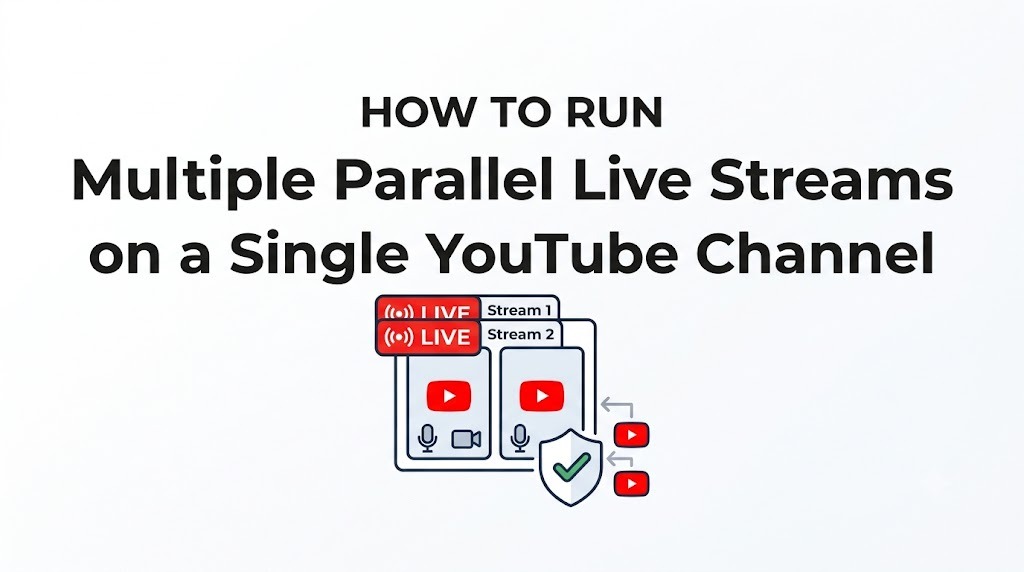
How to Run Multiple Parallel Live Streams on a Single YouTube Channel

V

Vicky Kumar

Aug 20, 2026 226 Views 1 Comments
How to Run Multiple Parallel Live Streams on a Single YouTube Channel
Key Takeaway & Thoughts
Running multiple live streams allows targeting different viewer segments (e.g. Lofi Beat 1, Synthwave Beat 2, Gaming Stream 3) without fragmenting your channel.

Many creators assume YouTube limits a channel to a single stream at a time. In reality, YouTube Studio allows creating unlimited parallel scheduled broadcasts, each with its own independent Stream Key.

Step-by-Step Instructions:

  1. Navigate to YouTube Studio > Go Live.
  2. Click on the Manage tab on the left navigation bar (do not use the default Stream tab).
  3. Click Schedule Stream in the top right.
  4. Create your broadcast title, description, and thumbnail.
  5. Under Stream Settings, select Create New Stream Key or choose a dedicated key.
  6. Repeat this for each stream instance.
Ready to Launch Your 24/7 Stream?

Get your private cloud dashboard today. Upload videos, loop content, and grow your channel while you sleep.

Start Streaming
V
Written By

Vicky Kumar

Creator and developer behind 24x7 Stream automation platform. Passionate about helping content creators maximize watch time and channel growth with cloud automation.

Comments (1)

Leave a Comment

Have questions or thoughts? Share with the community below.

T
Test User
1 week, 1 day ago

This is a test comment from automated verification.

Related Guides